Data Modelling
Part of Building an internal request app
Recording a decision before closing a request
Define request closure, capture the outcome and decision maker, and keep a correction path for a request closed in error.
Record an internal request's outcome and enough information to explain it before closing. Closed says the workflow has ended; it does not say whether work was completed, the request was declined or the requester withdrew it. Define the outcome and closure rule for the request type.
Decide when the request is finished
Consider a hypothetical equipment request. A reviewer might approve it, decline it or ask for missing details. Asking for details leaves the request open. Approval may also leave an order to place. Decide whether the request closes at approval or after fulfilment, and make that meaning clear to staff and the submitter.
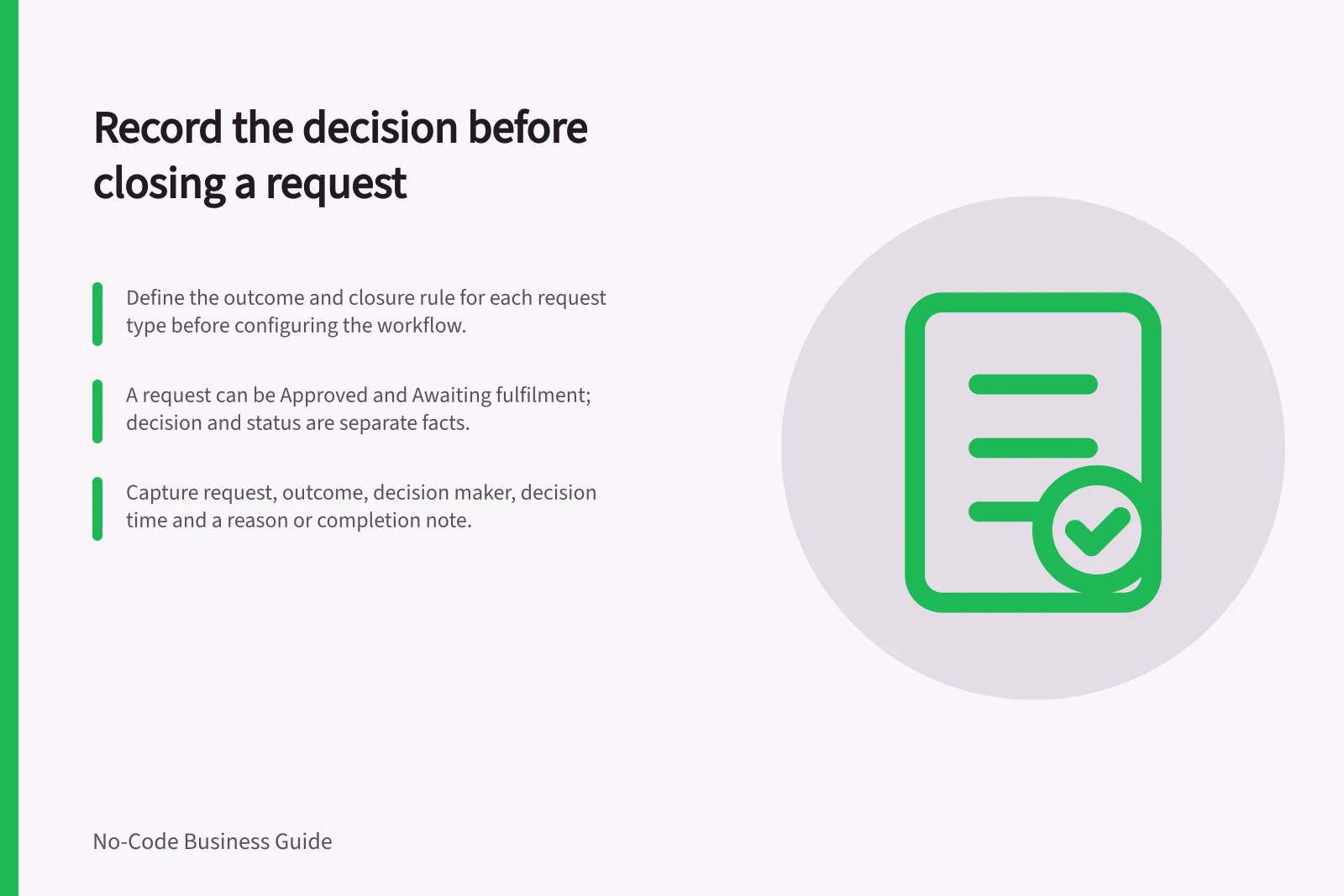
Keep the decision distinct from workflow status when both matter. A request can have a decision of Approved and a status of Awaiting fulfilment. If the app uses a single field, its choices still need to convey those two facts clearly enough for the work.
Decision and status: one field or two
- Single fieldThe one choice must still convey both facts — for example an outcome of Approved and the fact that the order is still to be placed.
- Separate decision fieldRecords what was decided: Approved, Declined or Withdrawn by the requester.
- Separate status fieldRecords where the work sits: Open, Awaiting fulfilment or Closed.
- What to checkWhichever design you choose, staff and the submitter must be able to tell the two facts apart from what they see.
Capture the outcome when it occurs
A useful decision record identifies the request, outcome, decision maker, decision time and an appropriate reason or completion note. Add supporting material when the team needs it. Required detail can vary by outcome: a decline may need a reason, while a completed repair may need a brief account of the work.
Use a controlled outcome choice so staff can find the current result consistently. A free-text note can add context but should not be the only place the outcome appears. Decide who may enter or change the decision; a requester correcting their description should not thereby change the reviewer's outcome.
If a separate approval tool supplies a response, identify which details the request record needs and configure their transfer or link. A response in the approval tool does not, by itself, show that the request app retained the decision history. Check the chosen tool's available fields and the configured flow.
What a decision record should capture
- The request the decision belongs to
- A controlled outcome choice, not free text alone
- Who made the decision
- When the decision was made
- A reason for a decline, or a completion note for finished work
- Supporting material, only where the team actually needs it
- A rule for who may enter or change the decisiona requester correcting their description does not change the reviewer's outcome
- A configured transfer or link for any response that arrives from a separate approval tool
Make closure deliberate
Write the condition for closing a request before configuring an action. It may require an authorised outcome, the reason or completion details appropriate to that outcome, and confirmation that no agreed follow-up task remains. If fulfilment follows approval, include its confirmation when the closure rule calls for it.
Show the person closing the request what the submitter will see. An internal note and public explanation may need separate fields. After closure, show the outcome and a suitable route for correcting a factual mistake or raising a new issue. Offer a review route for a declined request only if the organisation has one.
Turning a closure rule into a configured action
- Write the condition for closing before you configure anything
- Confirm an authorised outcome has been recorded
- Confirm the reason or completion details appropriate to that outcome are present
- Confirm no agreed follow-up task remains
- Where fulfilment follows approval, confirm it if the closure rule calls for it
- Show the closer what the submitter will see, separating internal notes from the public explanation
Correct a wrong closure
An authorised person needs a way to reopen or amend a request closed in error. Record why it changed and keep enough of the earlier outcome to understand the correction. Decide whether the submitter should receive an update. Silently replacing a decision can confuse anyone who acted on the previous result.
Before rollout, use fictional cases for approval awaiting fulfilment, decline with a reason, a request for more information, completed work and a wrong closure. Set the expected decision and status for each, then inspect the saved record and submitter view after each action.
Correcting a request closed in error
- Reopen or amendAn authorised person reopens or amends the request.
- Record the reasonNote why the closure or outcome is being changed.
- Retain the earlier outcomeKeep enough of the previous decision to understand the correction.
- Decide on notificationChoose whether the submitter is told, remembering that anyone who acted on the earlier result may be confused by a silent change.
- Test with fictional casesApproval awaiting fulfilment, decline with a reason, request for more information, completed work and a wrong closure — each with its expected decision and status.