Forms
Part of Building a no-code customer portal
Collecting documents through a controlled portal
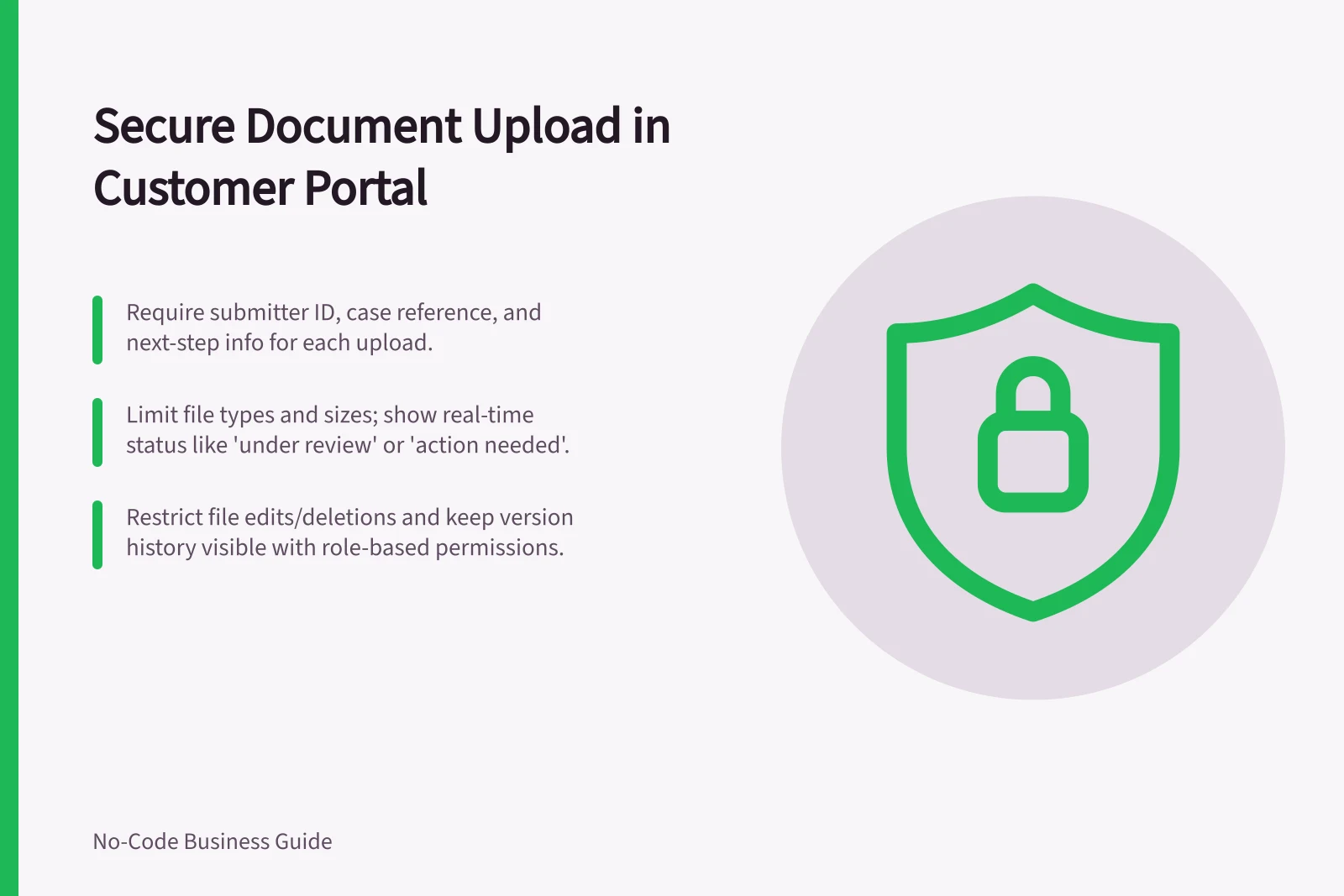
A document upload in a customer portal should identify who submitted the file, which case it belongs to and what happens next.
A document upload in a customer portal should identify who submitted the file, which case it belongs to and what happens next. A successful upload indicator confirms receipt only; it does not mean the document was reviewed or accepted.
Set accepted types and size. Require the minimum metadata needed for routing, and show a clear status such as received, under review or action needed.
Decide who can replace or delete a file and whether previous versions remain visible. Keep staff review separate from customer submission so an unapproved file cannot be mistaken for a final record.
Permissions must apply to the file as well as its parent case. Test with two fictional customer accounts, including direct access to a file address and any download or API action.
Power Pages documentation describes record access through table permissions and web roles. The exact file controls still need checking in the chosen implementation.
Define retention, malware screening and notification rules with the organisation's security team. If a document includes sensitive information, collect only what the workflow needs and provide a safe correction path when the wrong file is uploaded.
Document Upload Process in a Controlled Portal
- System confirms receiptDisplay 'Received' status. Do not imply approval or review completion.
- Assign to workflow for reviewRoute to appropriate team based on case type. Ensure only authorised staff can access the file.
- Review and approve/rejectSeparate submission from review. Maintain version history; prevent unapproved files from becoming final records.
- Notify user of outcomeSend automated notification with status: 'Under Review', 'Approved', or 'Action Needed'.
File Access Permissions: Customer vs Staff
- Customer AccessCan upload, view own files, but cannot delete or replace without correction path. No direct file URL access.
- Staff AccessCan view, edit, delete, and manage versions. Access via web roles and table permissions. Must follow ATO security guidelines.
Security & Compliance Checklist for Document Portals
- Require minimum metadataCapture submitter ID and case number for routing.
- Define version controlKeep previous versions visible; allow replacement only via correction process.
- Apply table and web role permissionsEnsure access aligns with Power Pages security model.
- Integrate malware screeningUse ATO-compliant tools; scan all uploads before storage.
- Establish retention policyAlign with Australian Privacy Principles (APPs) and recordkeeping laws.