Data Modelling
Part of No-code calculations and business rules
Separating display formatting from calculation logic
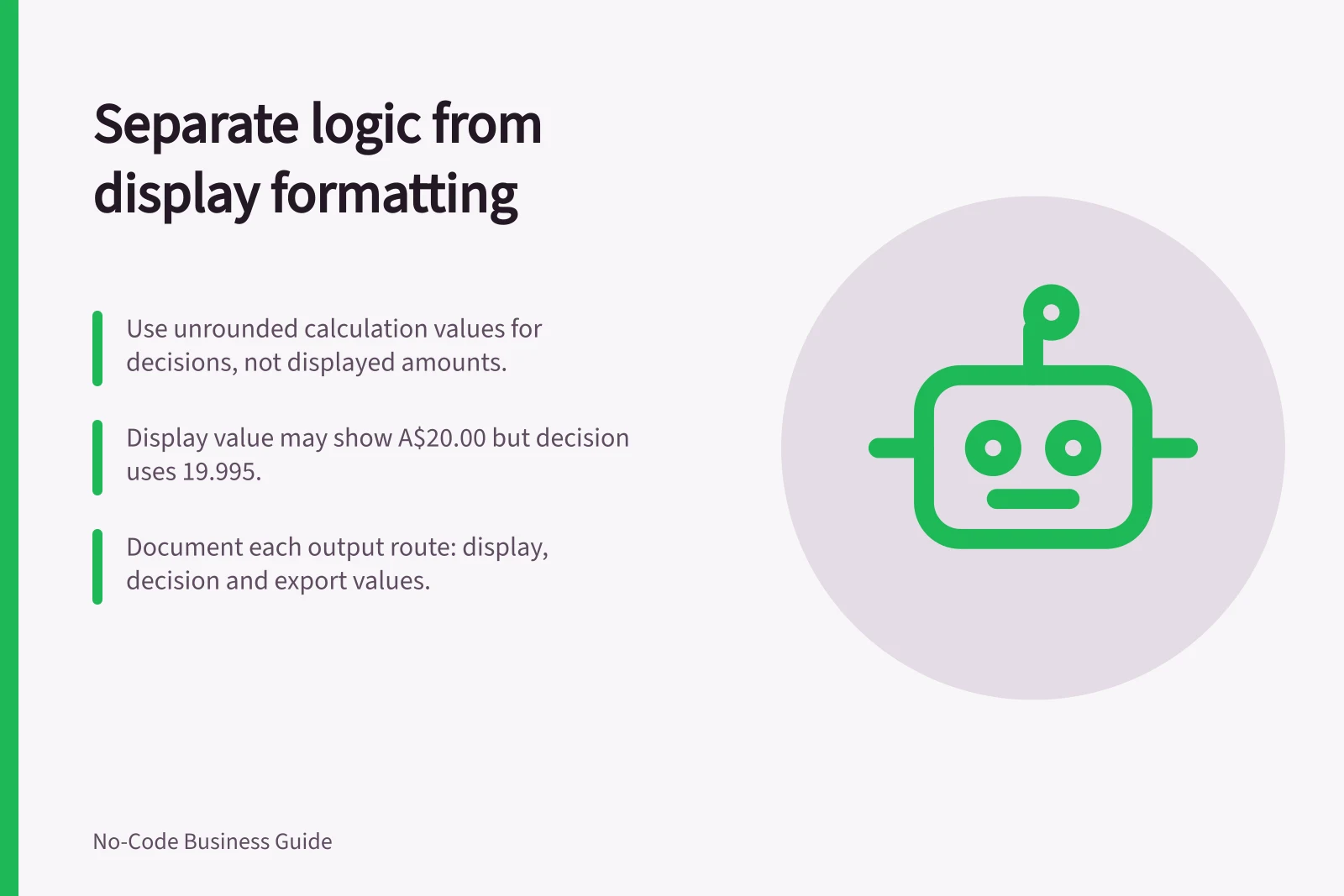
Keep numeric results, decision values and screen labels distinct so formatting does not silently change a no-code business rule.
Keep the arithmetic and decision number separate from the label a person sees. A displayed amount may read easily, but its currency symbol and visible decimal places do not establish which value an approval rule compares. Specify that value.
Follow one value through the app
Take an underlying amount of 19.995 in a hypothetical workflow. A nearest-value display rule with two decimal places could show A$20.00 on screen, while a comparison with 20 still uses the underlying number. The unrounded number may be correct for one policy and wrong for another. Display alone cannot settle it.
Identify three values for each important result:
- Calculation value:the numeric output before any agreed rounding step.
- Decision value:the value a threshold, status or automation uses.
- Display value:the text or number shown in the interface or a document.
The calculation and decision values may be the same. If a business rule requires rounding before a decision, make that an explicit step and check it. Do not assume visible precision changes the comparison.
Keep types useful
In Power Fx, Text formats a number or a date/time value based on a predefined date/time format or a custom format. A predefined date/time format automatically adjusts to each user's language and region, while a custom format's language placeholder specifies the language in which to interpret the other placeholders. The function can also convert any data type to a text representation using a default format. Check the type and locale of any value used after formatting.
For an Australian interface that also handles other currencies, label the currency where it might otherwise be unclear. Decide how imported values with different currency units are handled; changing a symbol does not convert an amount.
Key Considerations for Display Formatting in Australian Systems
- Currency Label Required?
- Yes, if handling multiple currencies
- Symbol Change = Currency Conversion?
- No – only changes display
- Australian Locale Default Format
- A$20.00 (with decimal places as per rule)
Check each output route
Use a value with more decimal places than the display shows. Record the underlying number, expected screen text and expected decision separately. Repeat with zero, blank and values on either side of a threshold. Inspect exports, notifications and connected workflows to see which field each receives.
If staff copy a figure into another system, state whether they should use the displayed amount or another value. Document field names and purposes so the same rule governs every route.