Forms
Part of No-code database quality
Creating safe bulk-edit processes
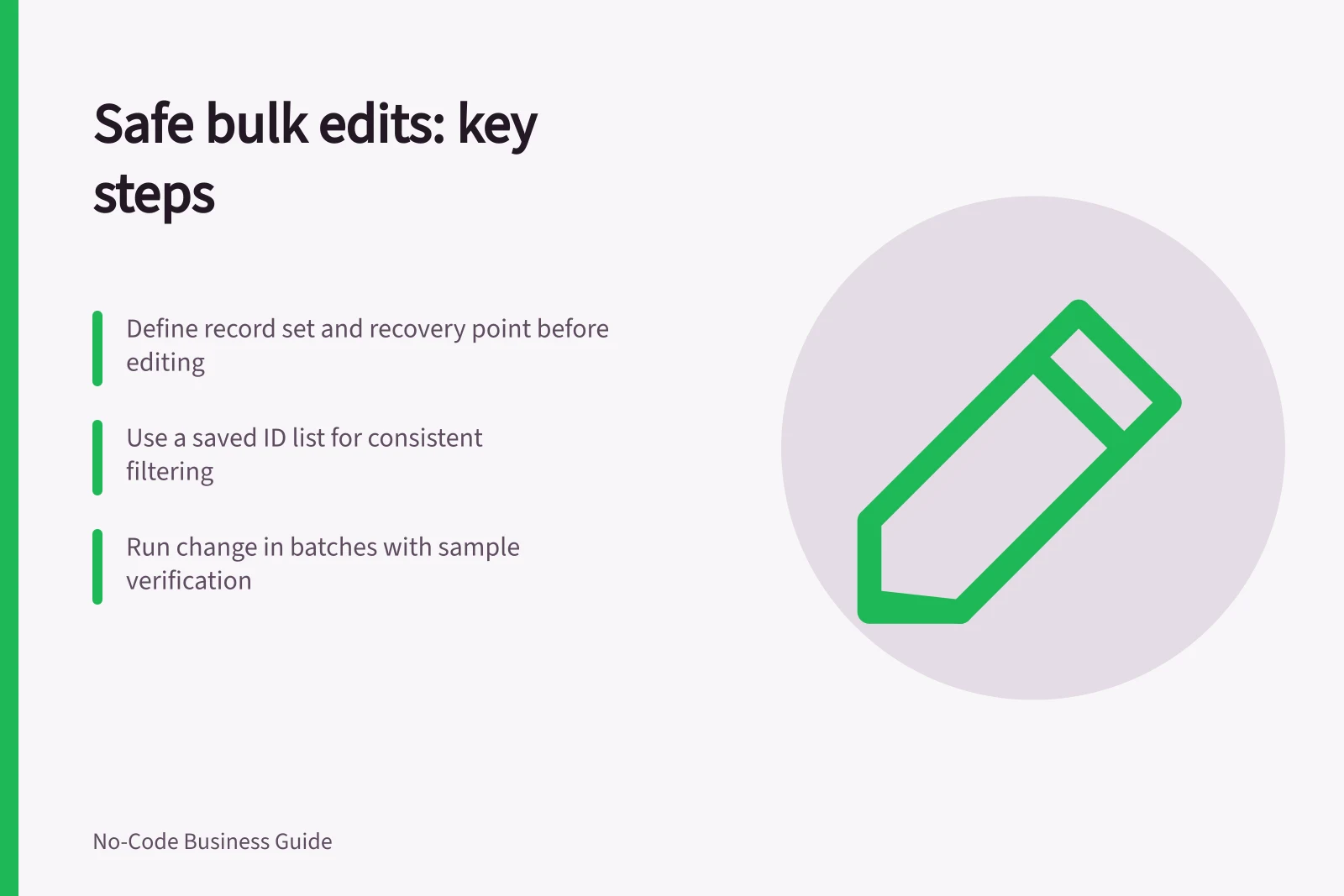
Plan the selection, prepare recovery, test a sample and verify every bulk edit against the expected records and values.
Define the record set and a recoverable starting point before a safe bulk edit. Specify which records qualify, what will change and what success looks like before anyone presses Save or runs an import. The larger the selection, the less useful a quick visual check becomes.
Write the change as a small plan
Record the business reason, approving owner, target table, filter, affected record IDs, field and intended value. Capture the expected count and any exclusions.
If the filter is “all open requests”, decide whether records opened during the edit should be included. A saved list of IDs is easier to reconcile than a filter whose result can change while work is underway.
Check whether the field drives notifications, assignments, calculations or integrations. Changing a status may trigger more than a change on screen.
If the platform offers a preview, inspect it. If it does not, export the selected rows and compare the proposed values in a working copy before applying them.
Prepare a recovery route
Use the platform’s available snapshot, export or backup method and confirm what it actually restores. A CSV copy may preserve values but omit files, relationships or history.
Before editing, document the recovery method’s scope and the steps needed to restore the affected records. Assign who can stop the job and who will perform recovery if verification fails.
For a critical field or a change that cannot be reversed cleanly, use a controlled approval and a maintenance window appropriate to the app. Confirm the assigned person can carry out the recovery steps.
Run, verify and close
Apply the change to a small, representative sample first, including a record near each boundary of the selection. Check both the record and any connected workflow.
Then run the remaining change in manageable batches if the product allows it. Pause on an unexpected count, error or automation effect rather than repeating the entire operation blindly.
Microsoft documents Dataverse bulk messages including CreateMultiple, UpdateMultiple, UpsertMultiple and DeleteMultiple; DeleteMultiple is for elastic tables only. Check that the operation applies to your table and consult the product’s guidance when choosing between bulk and batch options.
After the edit, compare the actual changed IDs and values with the plan. Check a sample of unchanged records to catch a filter mistake.
Review failed rows separately, then record the final count, exceptions, approver and recovery reference. Keep that change record with the app’s operational documentation so the next owner can understand why many rows changed at once.
Bulk Operation Considerations
- Supported operations
- CreateMultiple, UpdateMultiple, UpsertMultiple, DeleteMultiple (elastic tables only)
- Recommended approach
- Use batch over bulk where possible for better control
- Snapshot availability
- Airtable supports taking and restoring snapshots
- Record-level history
- Airtable provides revision history per record