Permissions
No-code app permissions
Plan who can open a no-code app, see records, change data and maintain it. Map each grant, then check the configured data route.
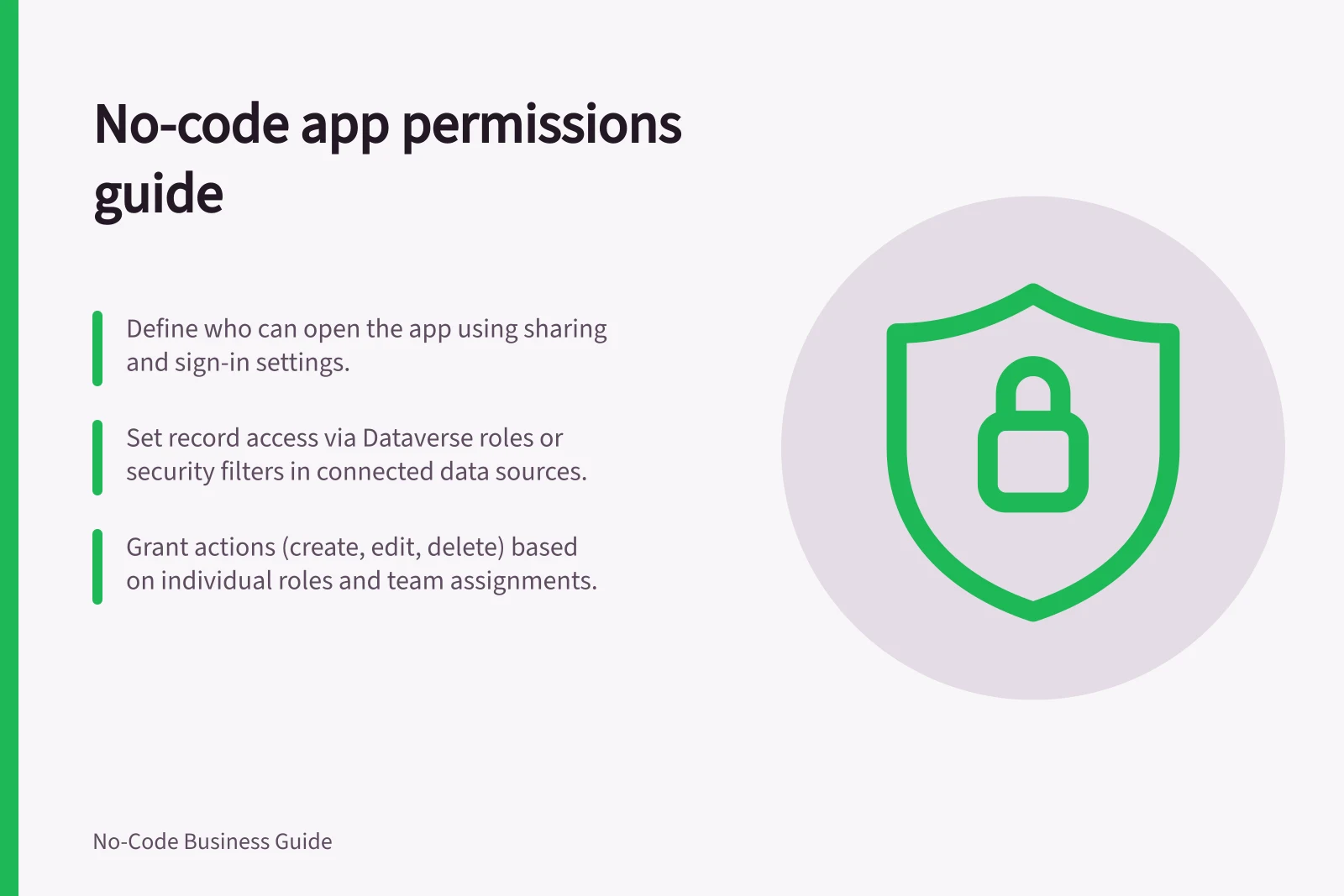
No-code app permissions answer four questions: who can open the app, which records they can see, what they can change, and who can change the app itself. Define the answers for each user group before you configure screens. A hidden button or filtered list does not by itself restrict access to the underlying data.
Map access to the work
Take an internal equipment request. A requester might create a request and read their own. A coordinator might update requests assigned to their team, while an app maintainer might change the configuration. These are proposed business rules, not roles a builder supplies automatically.
| Decision | Question to answer | Place to check |
|---|---|---|
| App entry | Who may open the app? | Sharing and sign-in settings |
| Record access | Which requests may each person retrieve? | Record rules and connected data source |
| Actions | Who may create, edit, approve or delete? | Data, field and action permissions |
| Maintenance | Who may change rules or invite others? | Builder and workspace permissions |
Include someone who should have no access. Distinguish a person who needs to read every record from one who needs to maintain the app.
Treat app sharing as one layer
In Power Apps, share a canvas app with named users or a security group in Microsoft Entra ID. Save and publish the app before sharing. After changes, save and publish again so other people receive them.
Sharing the app does not grant all the access its dependencies need. Microsoft says to manage permissions for each data source, such as Dataverse or Excel, and to check other dependencies such as flows, gateways and connections.
When a Power Apps app connects to a Dataverse table, its sharing dialog includes a security-roles option. Where an administrator has enabled app-level security roles, makers with the System Administrator security role can assign app-level privileges through the security-role picker. Treat this as another configuration point to review, rather than assume the app invitation alone defines access.
Trace the route to the data
Dataverse roles can control record actions and, for user- or team-owned records, the reach of those actions. Other connections need their own review.
For AppSheet, use security filters to restrict which rows the app includes. Check whether the app accesses data as the app creator or app user, because that determines whose source permissions apply.
For Airtable, configure who can access an interface and their interface permissions.
Check effective access, not just individual grants
Dataverse security roles can be assigned directly to users or to Dataverse teams and business units; users associated with a team benefit from its role. Permissions accumulate, and the greatest amount of access granted prevails. Microsoft notes that broad organisation-level read access to all contact records cannot be used to hide one record afterwards.
Business units and security roles together determine a user's effective security in a Dataverse environment. Every user belongs to a business unit, and business units define boundaries that can help manage users and data. When reviewing access, consider the combination of a person's grants, not only the app's sharing list.
Key stats on no-code app access control
- Effective access principle
- Permissions accumulate; highest level granted prevails
- Business unit requirement
- Every user belongs to a business unit in Dataverse
- Role inheritance
- Users inherit permissions from teams and business units
- Privacy guidance for small businesses
- Australian organisations must comply with OAIC privacy principles
Set the smallest useful grant
For each role, decide separately who may read, create, update, delete, export and share. Define whether the grant applies to all records, a team, an assigned person or another set. If a coordinator covers another team temporarily, record who approves that access and when it ends.
Check indirect routes. A person who cannot edit a status on the detail page might still change it through an action or import. Someone who sees a filtered page may have broader access through the data source. Include related records and files in the rule.
Grant app maintenance separately from record work. Document who approves access, who applies it and who removes it when a person's duties change.
Check the configured app
Compare each grant and data-source permission with the intended access recorded in the permission matrix.
Repeat focused checks after changes to sharing, roles, data sources or automations. Keep the permission matrix with the app's operational notes so its next owner can assess new access requests.
Make permission changes auditable
For a Power Apps change, record whether the app was republished and whether its data sources and dependent resources were checked. This gives the next reviewer a concrete way to distinguish an app update from a change to the access needed by its connections.
When a Dataverse access result is unexpected, compare all roles associated with the user, including roles inherited through teams or business units.
In this guide
- Separating viewer, editor and administrator accessDefine what viewers, editors and administrators may do in a no-code app, then match those duties to app and data-source permissions.
- Restricting records by team or customerDefine team or customer record ownership, choose an enforcement point and check access after reassignment.
- Testing permissions with a non-administrator accountCheck permitted and denied actions using an ordinary no-code app account, fictional records and the actual data route.