Permissions
Part of No-code app permissions
Testing permissions with a non-administrator account
Check permitted and denied actions using an ordinary no-code app account, fictional records and the actual data route.
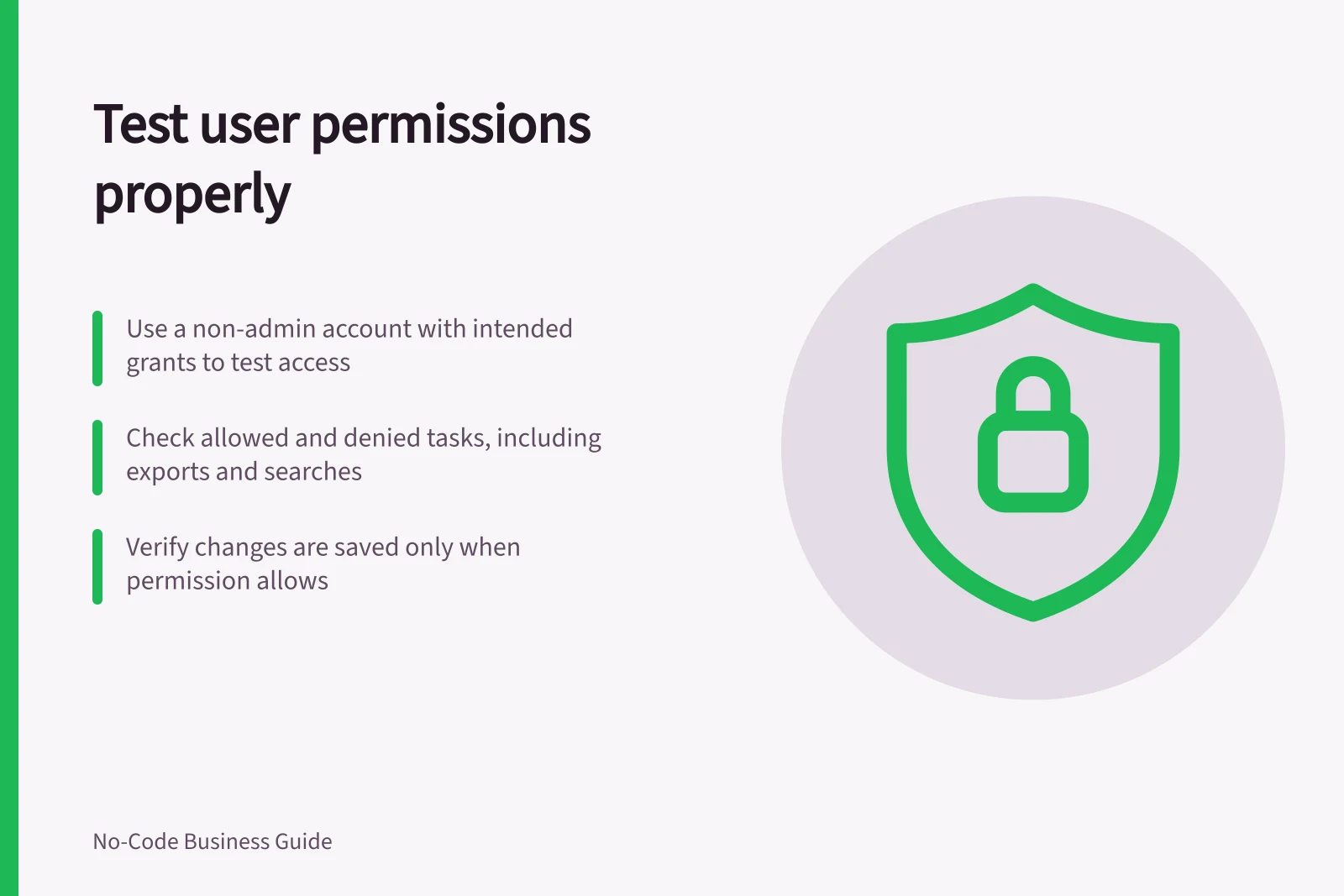
Test permissions along the route an ordinary user takes, using an account with the intended grants. Before opening the app, state what that account should be able to read and change. Try an allowed task and a denied task, then check the stored result as well as the screen.
Prepare accounts and records
Use fictional records in an approved test setting. Prepare an ordinary viewer or editor account, an account from another team, and an administrator account for setup and diagnosis. Check every grant each ordinary account holds, including workspace, base, group and data-source access. An extra grant changes what the test proves.
Include a record the ordinary user may access, one belonging to another group, one shared by policy and one recently reassigned. Add a related file or child record if the app uses them. Record the app version, data source, account and grants.
| Attempt | Expected result to define beforehand |
|---|---|
| Open an authorised record | See permitted fields and actions |
| Open another group's record | Protected details are denied or absent |
| Edit a read-only field or record | No saved change |
| Use search, a direct route or export | The intended boundary still applies |
| Lose a role or team membership | The former grant stops providing access after the change takes effect |
A missing menu item shows only what the screen displays. A denial check asks whether the account can retrieve or change the protected record through another available route.
Use each product's test route carefully
For AppSheet, test the app while signed in as the intended user, using safe records. Check the observed access and any saved changes, then confirm the same task through the user's normal session.
In Power Apps, canvas app users may need permissions for Dataverse, Excel or other connected resources. Some connections are shared with the app; others require the user to create a connection or hold separate rights.
Check which identity reaches the source. For Dataverse, an administrator can use Check Access to inspect another user's rights to a row. That diagnostic helps explain an outcome but does not replace the ordinary user's task check.
In Airtable, inspect whether the account already has base or workspace access. Test the published interface with the account's actual permission level and each relevant page.
Record the result and correct the grant
For every attempt, record the account, record ID, action, expected outcome and observed outcome. For a write, inspect the saved value. For a read, note whether protected details appeared in a list, search result, detail view, export or related file. Use fictional data to demonstrate a denial.
If a denied task succeeds, trace the grants from the app, workspace, role, team, record and source connection before widening access. If an allowed task fails, identify whether the app share, source permission or action rule caused it. Correct the rule, then repeat the focused cases.