Platform Choice
Part of No-code platform selection
Checking export and portability before platform selection
Check records, attachments, relationships and app logic before choosing a no-code platform. See what common export routes leave behind.
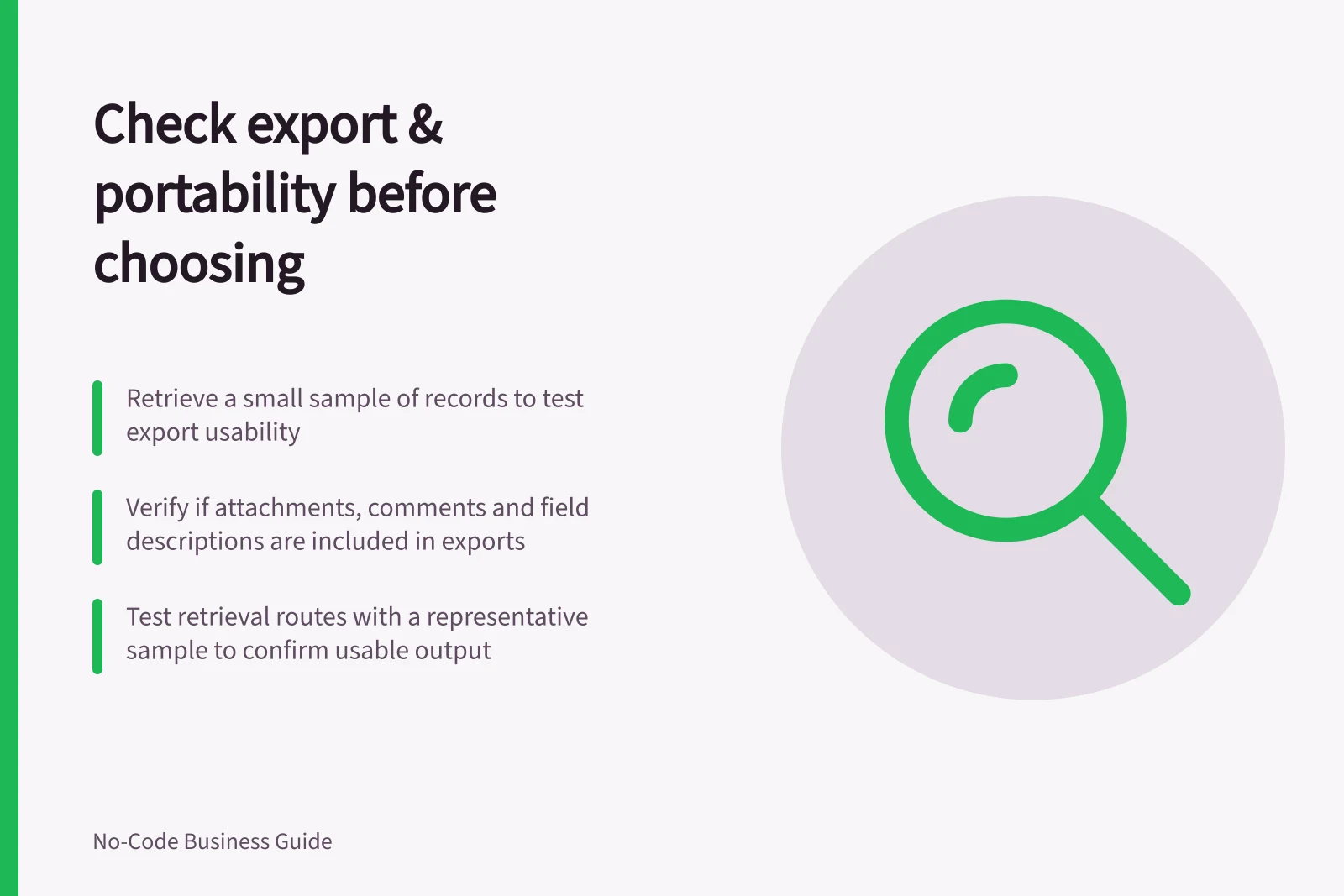
Before choosing a no-code platform, retrieve a small representative set of records. List the other parts you would need after a move.
Check what the files contain, who can obtain them and what must be rebuilt. An Export button alone does not establish portability.
Inventory what must survive
List the records, their identifiers and relationships, attachments, calculated values and important status changes. Then list screens, forms, permissions, automations and connections.
Mark which items can leave in a usable format and which need documentation or recreation.
A useful fictional sample has one parent record, two related records, an attachment and a status change. Keep field definitions beside the exported values.
A CSV may hold cell values without preserving the rule that produced them or explaining a relationship.
Check the route each product offers
Airtable. If the app uses Airtable, identify the base and tables holding its records. Softr’s Airtable integration can read, create and update records, but that does not establish what an export contains or how to retrieve files. Test the available retrieval route and inspect its output.
Check whether the route captures comments, field descriptions, data held in extensions and attachment files. Do not assume these are included; verify what the retrieved material contains.
AppSheet. Identify the data source and check its current documentation and permissions for a retrieval route. Test that route with a representative sample rather than assuming an app-level copy will provide records and files in a form usable elsewhere.
Softr. When a Softr app uses Airtable, check the Airtable base as a source of records. Softr’s integration can read, create and update Airtable records.
Separately inventory Softr pages, permissions and workflows, and verify what route is available for retrieving or recreating them.
Comparison of export and portability routes by platform
- AirtableExport via base; check for comments, field descriptions, extensions, and attachments. Use Softr integration to test read/write access.
- AppSheetVerify data source permissions and retrieval method. Test with sample data to confirm usability outside AppSheet.
- SoftrUse Airtable as underlying data source. Inventory pages, workflows, and permissions separately. Confirm recreation path for app logic.
Inspect what you retrieved
Open the sample with someone who did not build the app. Can they match the related records, understand the current status, preserve identifiers and obtain the attachment itself?
Record any missing field or file. Also check whether the person responsible for a future move has permission to obtain the material.
This is a selection check, not a migration plan. Treat the sample as useful evidence only when its relevant records have been retrieved and interpreted, and the remaining app components have a plausible recreation route.
If an essential item is unavailable, seek a supported route or record the dependency as a selection limit.